The best Chrome note extensions, side by side.
Six note-taking extensions. Four things that actually matter: can you reach it from your toolbar, does it cost anything, does it save on its own, and what strings are attached. Sort it, filter it, decide in ten seconds.
| Extension ↕ | Toolbar ↕ | Price ↕ | Auto-save ↕ | Ads / catch ↕ |
|---|---|---|---|---|
📄Hayaku NotesOurs |
✓ | Free to 50 notesThen $5.97 once, yours forever | ✓ | None |
✏️Chrome Notes |
✓ | Free | ✓ | None |
QTQuick Note TabOpens in new tab |
✗ | Free | ✓ | Takes over new tab |
NTNew Tab NotesOpens in new tab |
✗ | Free | ✓ | Takes over new tab |
GKGoogle KeepGoogle account required |
✓ | Free | ✓ | Account + cloud |
ONOneNote Web ClipperMicrosoft account required |
✓ | Free | ✓ | Account + cloud |
Toolbar = open it straight from the Chrome toolbar in one click. Auto-save = your note is kept without pressing anything. Ads / catch = the strings attached, like ads, a required account, or something taken over.
Want the fastest one?
Hayaku Notes opens from your toolbar, saves on its own, needs no account, and shows no ads. Free to 50 notes, then $5.97 once.
Get Hayaku Notes →The full breakdown
Hayaku Notes
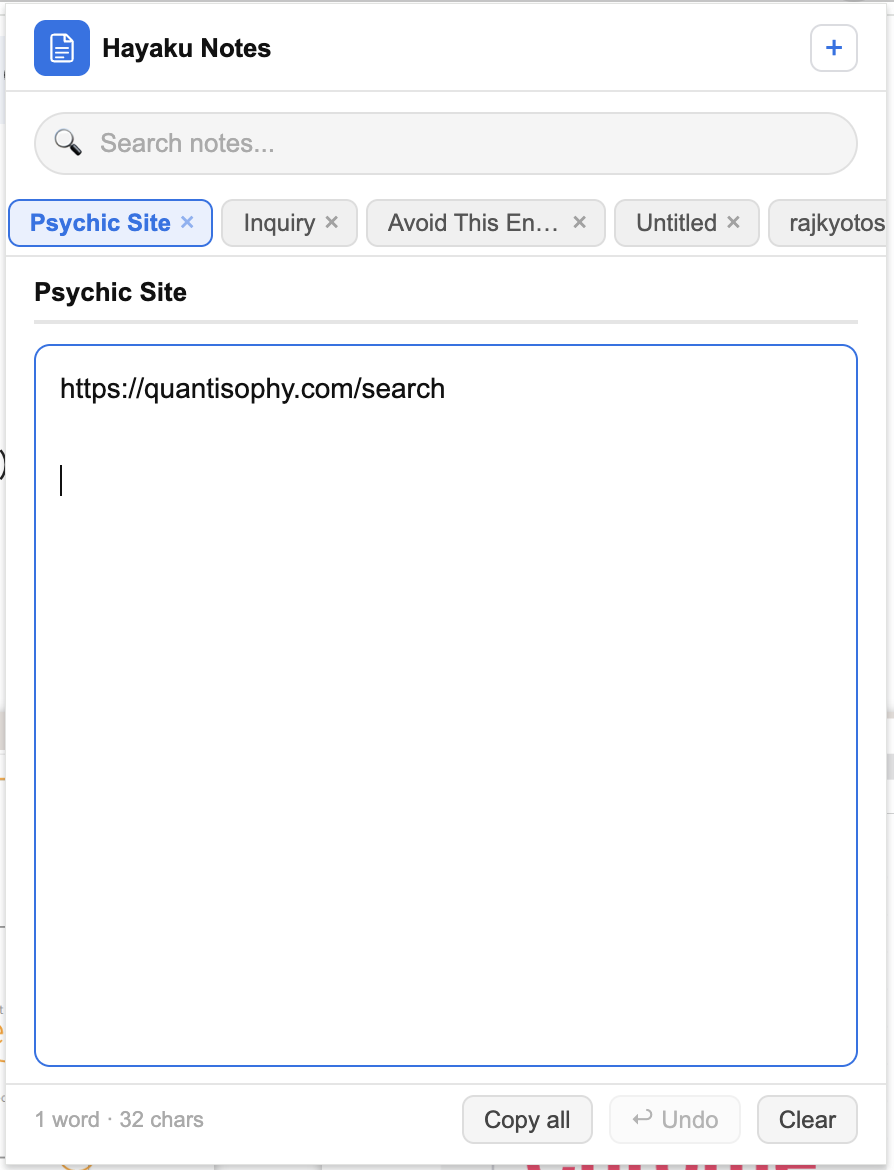
Hayaku Notes is built around a single idea, capturing a thought without leaving whatever you're doing. You click the icon in your Chrome toolbar, a small notepad drops down, you type, and you close it. The note is already saved. There is no save button, no folder structure to maintain, and no menu to learn. For people who mostly want to jot something down and get back to the page they were on, that narrow focus is the whole appeal.
The name comes from the Japanese word for "fast," and speed is the organising principle. Because the notepad lives in the toolbar dropdown, the distance between "I need to write this down" and "it's written down" is about one click. Nothing loads in a new tab, nothing pulls you away from your current context, and nothing asks you to categorise the note before you've even written it. That matters more than it sounds, because the friction in most note tools isn't the writing, it's everything that surrounds the writing.
Storage is entirely local. Hayaku uses Chrome's built-in storage, which means your notes stay on your own device and nothing is uploaded to a server. There's no login, no email, and no sign-up step before you can start. That's a genuine privacy advantage for anyone who doesn't want their quick notes sitting in someone else's cloud, and it also means the extension works instantly the moment it's installed. The trade-off is the flip side of the same coin. Because notes live in the browser's local storage, they aren't automatically synced to your phone or a second computer, and clearing your browser data can remove them. For its intended use, fast capture on one machine, that's a reasonable trade. For someone who needs the same notes on five devices, it's a limitation worth knowing up front.
What Hayaku deliberately leaves out is as important as what it includes. There's no rich-text formatting, no highlighting of web pages, and no nested notebooks. It does keep things light with simple tags across the top, a search box, and a running word and character count, so you can find an old note fast without a heavy filing system. If your workflow depends on formatting and notebooks, this isn't the tool for you, and it doesn't pretend to be. It's a scratchpad, not a second brain. The people who tend to like it are the ones who already tried the heavier options, found themselves spending more time organising than writing, and wanted something that gets out of the way.
On pricing, Hayaku is free up to 50 notes, which for most people works out to roughly three months of everyday use before you'd hit the limit. After that, it's a single one-time payment of $5.97 to unlock unlimited notes, and that's it. There's no subscription, no monthly bill, and no ads anywhere in the product. You pay once and it's yours. That model sits deliberately between the fully free tools, which monetise some other way or simply hope you'll upgrade elsewhere, and the account-based cloud services, which are free but tie you to a platform. Here you own the thing outright for less than the price of a coffee.
In practical terms, it fits a specific moment well. You're watching a video and want to save the URL, you're reading an article and a thought lands, you're mid-task and need to park a reminder before it evaporates. Open, type, close. If that's the job you're hiring a note extension to do, Hayaku does it with very little ceremony. If you need structure, sync, and formatting, one of the heavier tools below will serve you better.
Chrome Notes
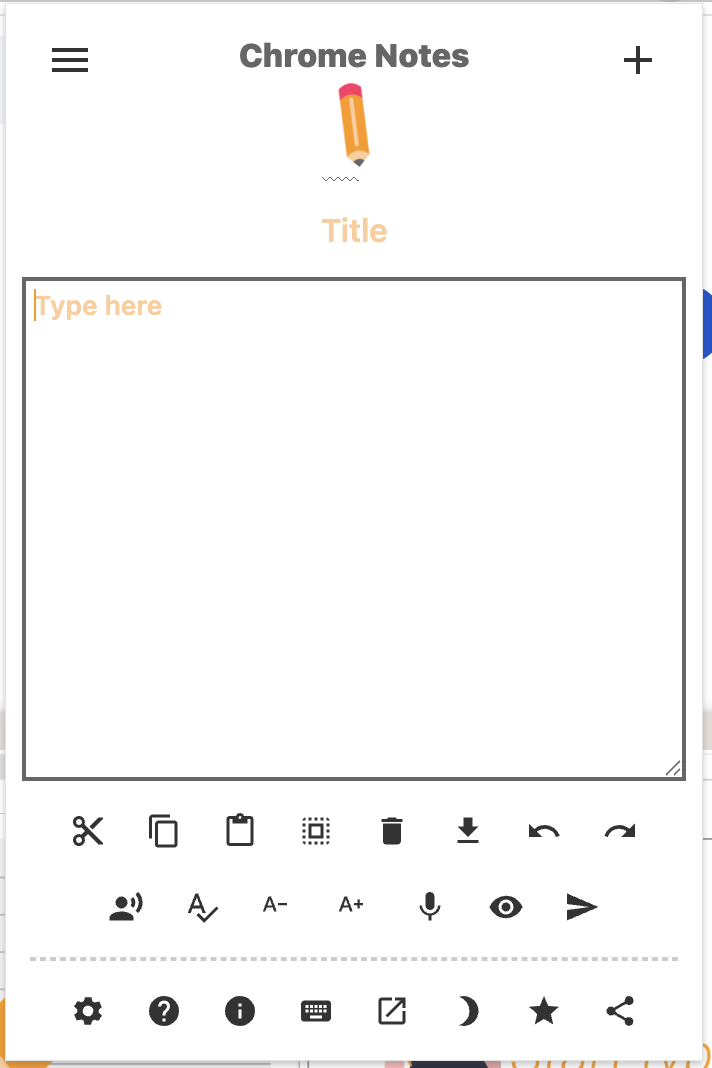
Chrome Notes is one of the longer-running options in this category, with a large existing user base and a reputation for being small and dependable. It sits in the toolbar and opens a resizable notepad, and it remembers both your notes and your last-used settings after you close the browser or restart your machine. Like Hayaku, it stores notes locally rather than in a cloud account, so nothing leaves your device unless you choose to export it.
Where it differs is scope. Chrome Notes leans slightly more feature-forward than a pure scratchpad. It supports multiple notes rather than a single pad, includes shortcut buttons for cut, copy, paste, and select-all, and lets you save a note as a plain-text file for backup. There's a focus mode for distraction-free writing, an adjustable font size, a dark mode, and even a text-to-speech option that reads selected text aloud. You can also right-click selected text on a page and send it straight to a new note, which is handy for collecting snippets while browsing.
That extra surface area is the main thing to weigh. If you want a couple of small conveniences beyond raw capture, several notes side by side, a quick backup to a text file, the ability to resize the pad, Chrome Notes gives you those without turning into a full productivity suite. It stays comfortably on the lightweight end of the spectrum while offering a little more than the most minimal tools. For a lot of people that's a sensible middle ground. It's also completely free and, per its own listing, ad-free, so there's no catch on that front.
The considerations are modest but worth naming. More features mean marginally more interface to look at, so it's not quite as instantaneous as a single-pad tool where there's nothing to decide. And as with any locally stored option, your notes are tied to that browser profile. Switching profiles or wiping browser data can take the notes with it unless you've exported first. The text backup feature exists precisely to cover that, so the safety net is there if you use it.
Overall, Chrome Notes is a solid, mature choice for someone who wants fast toolbar access plus a handful of quality-of-life extras, and who values local storage over cloud sync. It's less about a single idea executed narrowly and more about covering the common note-taking needs competently in one small package.
Quick Note Tab
Quick Note Tab takes a different structural approach from the toolbar tools. It replaces your new-tab page with a notepad. Every time you open a new tab, you land in a blank note and can start typing immediately, with no clicks and no menus. Notes save automatically and are stored on the device. For people who open new tabs constantly throughout the day, this turns an already-frequent action into a note-capture moment.
Its strongest claim is time-to-first-character. Because the note is the new-tab page itself, there's arguably nothing faster once you're in the habit. You don't even click an icon, you just open a tab and write. It's privacy-friendly in the same way the local-storage tools are, with no account required, and it works offline. If your mental model is "my notepad should be the first thing I see," this design fits that instinct neatly.
The reason it gets a cross in the toolbar column is simply that it doesn't live in the toolbar. You reach it by opening a new tab, not by clicking a toolbar icon while staying on your current page. That distinction matters depending on how you work. If you're deep in an article or a video and a thought strikes, a toolbar tool lets you capture it without leaving the page. Quick Note Tab asks you to open a new tab, which pulls you away from what you were looking at. Neither is wrong, they're optimised for different moments. Toolbar tools favour capture without leaving. New-tab tools favour capture as the first thing you see.
The other consideration is that replacing your new-tab page is an opinionated change. If you already rely on your new-tab page for something else, a dashboard, shortcuts, a search box, a visual start page, this extension takes that real estate over. Some people love reclaiming the new tab for notes. Others miss whatever was there before. It's worth being honest with yourself about how you actually use that page before installing.
For the right person, Quick Note Tab is excellent. Fast, free, offline, and frictionless once the habit forms. For someone who wants to keep their current tab and jot from the toolbar, or who has a new-tab setup they don't want to lose, a toolbar-based tool is the better structural match.
New Tab Notes
New Tab Notes works on the same principle as Quick Note Tab, the notepad appears when you open a new tab, but it's built around a single central notepad rather than many. Open a new tab, or click the extension, and you get one consistent pad that you return to every time. Notes save automatically as you type, and the whole thing behaves a bit like having a browser-native version of the classic desktop notepad app.
The appeal here is simplicity taken almost to its limit. There's one place your text lives, so there's never a question of which note you're in or where something got saved. For people who don't want multiple notes and just want a single running scratchpad, a place for the day's thoughts, a rolling to-do list, a spot to paste things temporarily, that one-pad model is calming rather than limiting. It removes even the small decision of new note or existing note.
Formatting is minimal by design. This is plain-ish text, saved to local storage, which keeps it private and fast but means you shouldn't expect headings, styles, or rich formatting. For quick capture that's usually fine. For structured writing it isn't the tool. It works offline and requires no account, consistent with the other local-first options here.
The trade-offs mirror Quick Note Tab's. Because it lives on the new-tab page, it's not a toolbar tool. Capturing a note means opening a new tab and leaving your current page rather than jotting from the toolbar in place. And it takes over your new-tab page, so if you had something else there, it's gone in favour of the pad. The single-pad approach is also a genuine fork in the road. If you frequently want several separate notes at once, a multi-note tool will suit you better, whereas if you want exactly one running surface, this is arguably cleaner than tools that give you many.
New Tab Notes is a good pick for the minimalist who wants one dependable pad that's always a new tab away, and who is happy to give up the new-tab page to get it. It's less suited to anyone who wants in-place toolbar capture or the ability to juggle multiple distinct notes.
Google Keep
Google Keep sits in a different weight class from the pure scratchpads. The Chrome extension is really a companion to the full Keep service, and that changes the whole calculation. From the toolbar you can clip a page or save a quick note, and because Keep is a cloud service tied to your Google account, whatever you save shows up automatically on your phone, your other computers, and the Keep website. If you're already inside Google's ecosystem, that seamless sync is the headline feature.
What you get in return for signing in is genuine breadth. Keep supports notes, checklists, images, labels for organisation, colours, reminders, and search across everything you've saved. It's less a browser scratchpad and more a lightweight personal note system that happens to have a browser extension attached. For people who want their quick captures to become part of a larger, searchable, cross-device collection rather than staying trapped in one browser, that's a meaningful step up.
The cost of that power is the account requirement and the cloud model. You must be signed into a Google account, and your notes live on Google's servers rather than only on your device. For many people that's a non-issue or even a plus, it's the mechanism that makes sync work. For anyone who specifically wanted a note tool precisely because it kept things local and off the cloud, it's the opposite of what they're after. This is the clearest philosophical divide in this whole comparison. Local-first tools keep your notes on your machine and private by default but don't sync. Cloud-first tools like Keep sync everywhere but require an account and off-device storage.
There's also a subtle speed difference. A local toolbar scratchpad opens instantly with nothing to load. Keep, being tied to a service, has slightly more happening behind the scenes. In day-to-day use it's still quick, but it's not the same zero-weight feeling as a tool that does nothing but drop a text box in front of you. You're trading a little immediacy for a lot of capability.
Google Keep is the right answer for someone who wants their notes to follow them across every device, doesn't mind, or actively wants, a Google account in the loop, and values organisation features like labels, reminders, and search. It's the wrong answer for someone whose entire reason for wanting an extension was to keep notes local, private, and instant with no login at all.
OneNote Web Clipper
OneNote Web Clipper is, like Google Keep, a bridge to a much larger service rather than a standalone notepad. It lives in the toolbar and its main job is to capture web content, a full page, a region, or a cleaned-up article, and file it directly into your OneNote notebooks. If OneNote is already your second brain, this extension is the natural on-ramp for getting things off the web and into that system without copy-pasting.
The strength here is depth of organisation. OneNote itself is a full notebook system with sections, pages, and rich formatting, and anything you clip syncs to OneDrive and appears across all your devices and the OneNote apps. You can tag content, add a quick note alongside a clip, and drop research snippets into the right notebook as you go. For students, researchers, and anyone doing sustained work that benefits from structured, permanent, cross-device notes, that's a serious advantage over a scratchpad that forgets everything the moment you clear your browser.
The considerations are the same shape as Keep's, and they're significant. This is not a place to jot a five-second throwaway thought. It's a clipper for a heavyweight notes platform. It requires a Microsoft account, it stores everything in the cloud via OneDrive, and it assumes you actually use OneNote as your hub. If you don't already live in OneNote, adopting the clipper means adopting the whole ecosystem, which is a much bigger commitment than installing a notepad extension. The tool only makes sense as part of that larger setup.
It's also worth being clear about the mismatch it would create for a quick-capture user. The entire value of a tool like this is structure and permanence, notebooks, sync, formatting, long-term retrieval. That's the opposite of the strip-everything-away philosophy behind the fast scratchpads. Using OneNote Web Clipper for throwaway notes would be like using a filing cabinet for a sticky note. It's overkill in that context, and the friction of choosing a notebook and section each time would defeat the purpose of a fast jot.
OneNote Web Clipper is an excellent choice for the person already committed to OneNote who wants a clean way to pull web content into it, with full sync and organisation. It's the wrong tool for someone who just wants to type a quick note in one click and doesn't want an account, a cloud, or a notebook system attached.
Skip the research.
Fast toolbar capture, no account, no ads. Free to 50 notes, then $5.97 once, yours forever.
Get it on the Chrome Web Store →